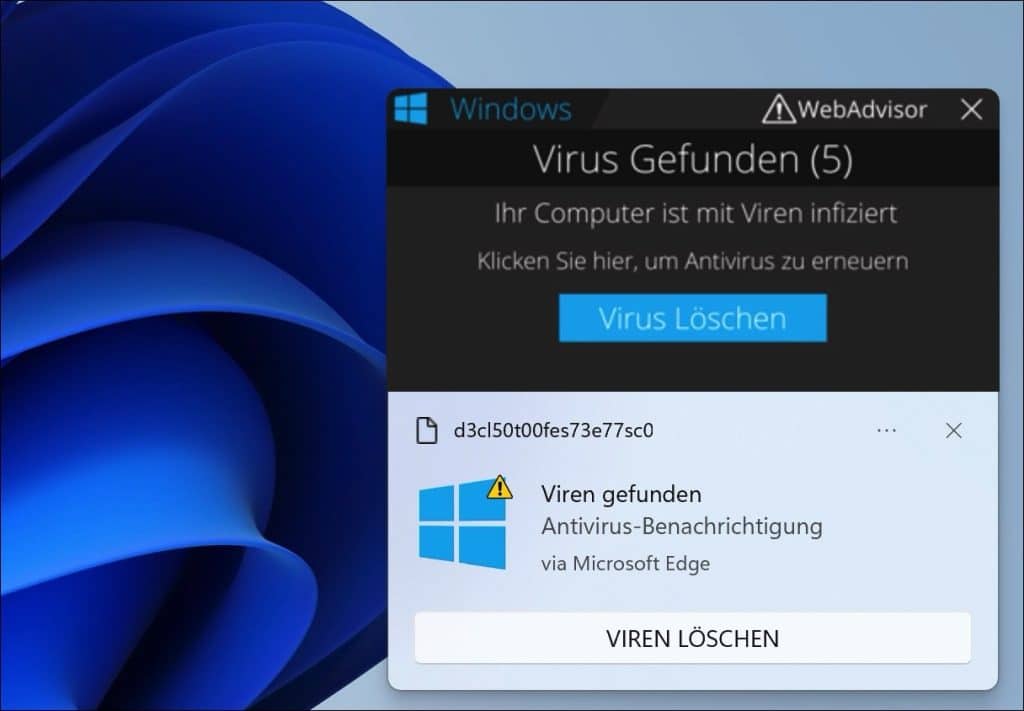
In this article I explain how you can remove unwanted notifications in the form of pop-ups from Kyronbotshield.co.in.
Kyronbotshield.co.in is a fraudulent website that is used by cybercriminals to deceive people.
The deception takes place by displaying a prompt to accept notifications. An example of this can be seen below:
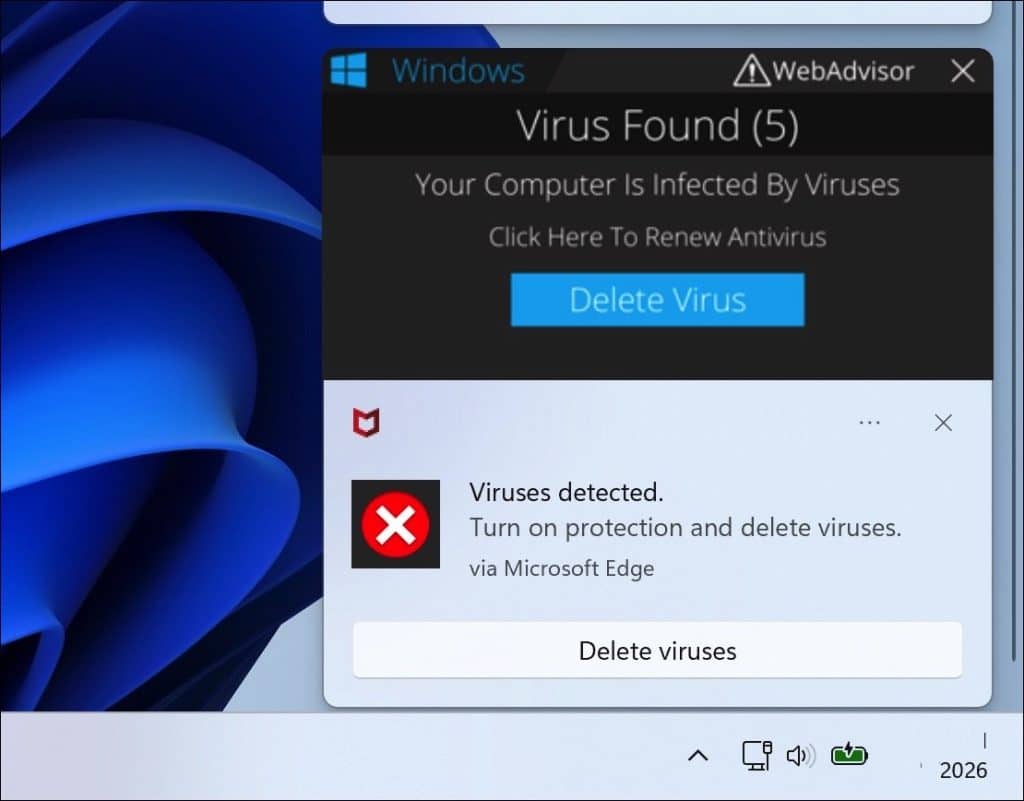
If you accept this prompt by clicking on ‘Allow’, a pop-up will be displayed on your computer.
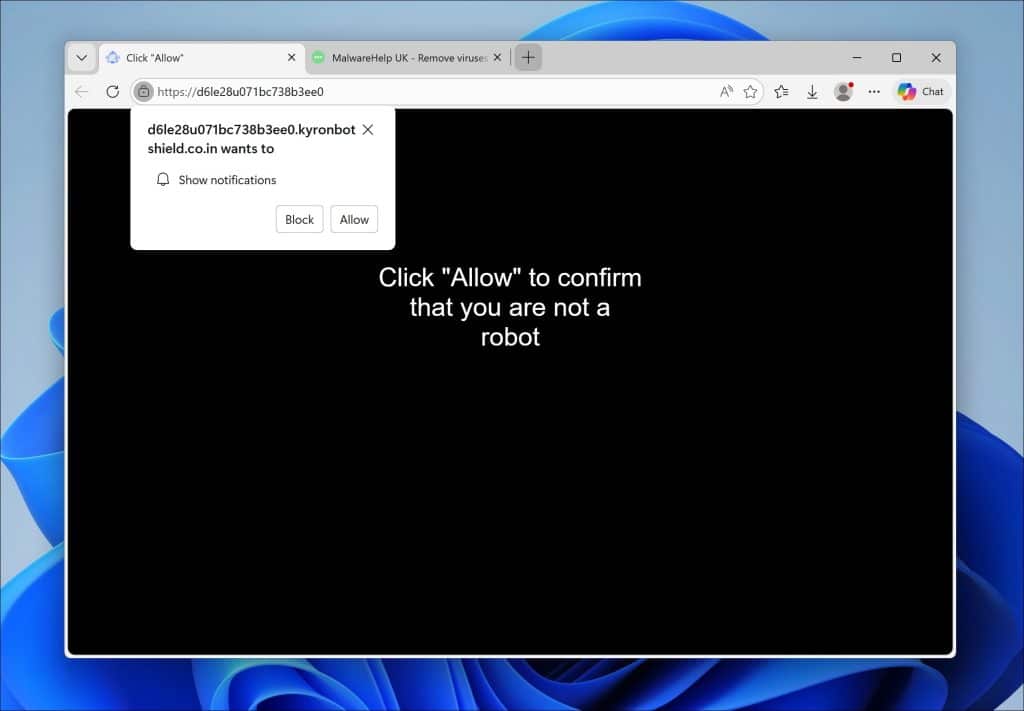
In reality, these pop-ups are notifications that are sent by the browser. Also known as push notifications.
These push notifications then appear as warnings, offers, or other important messages but are intended to entice you to click on unsafe links or enter personal data.
In this article I explain how you can remove these annoying pop-ups and prevent Kyronbotshield.co.in from obtaining permission to send notifications again.
| Key | Value |
|---|---|
| TLD | in — Standard TLD |
| Status (RDAP) | — |
| Registrar | — |
| Created on | — |
| Expires on | — |
| Domain age | — |
| Nameservers | — |
| A (IPv4) | — |
| MX (Email) | — |
| Public IPs | — |
| Reverse DNS | — |
| Hosting (ASN) | — |
| SPF | — |
| DMARC | — |
| HTTP status | — • Redirects: — • Time: — |
| robots/sitemap | robots.txt not found • no sitemap |
| TLS/SSL | TLS invalid/missing Issuer: — Subject: — Valid until: — (Days left: —) SAN: — |
| Reputation (URLhaus) | No URLhaus reports |
| Spamhaus DBL | Listed on Spamhaus DBL |
| First archive (Wayback) | — |
Remove Kyronbotshield.co.in
First, you must know which browser you are using.
Since these notifications originate from the browser settings, you must remove the unwanted notifications from your internet browser.
Below you will find the removal steps listed by browser.
Choose the browser you use and follow the instructions. Are you unsure? Then follow all instructions and check every installed browser.
Microsoft Edge
First open the Microsoft Edge browser.
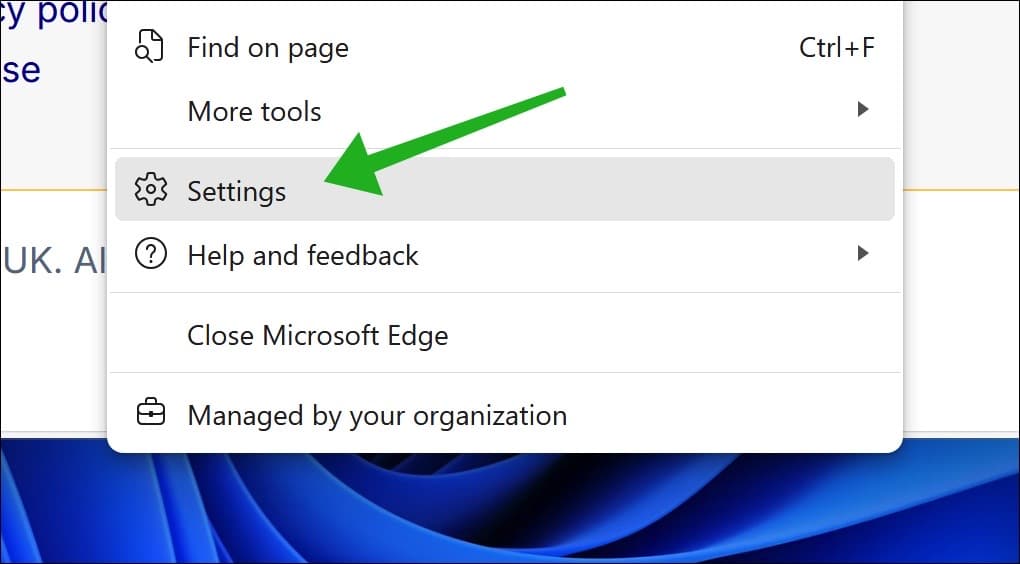
Then click on the menu icon at the top right.
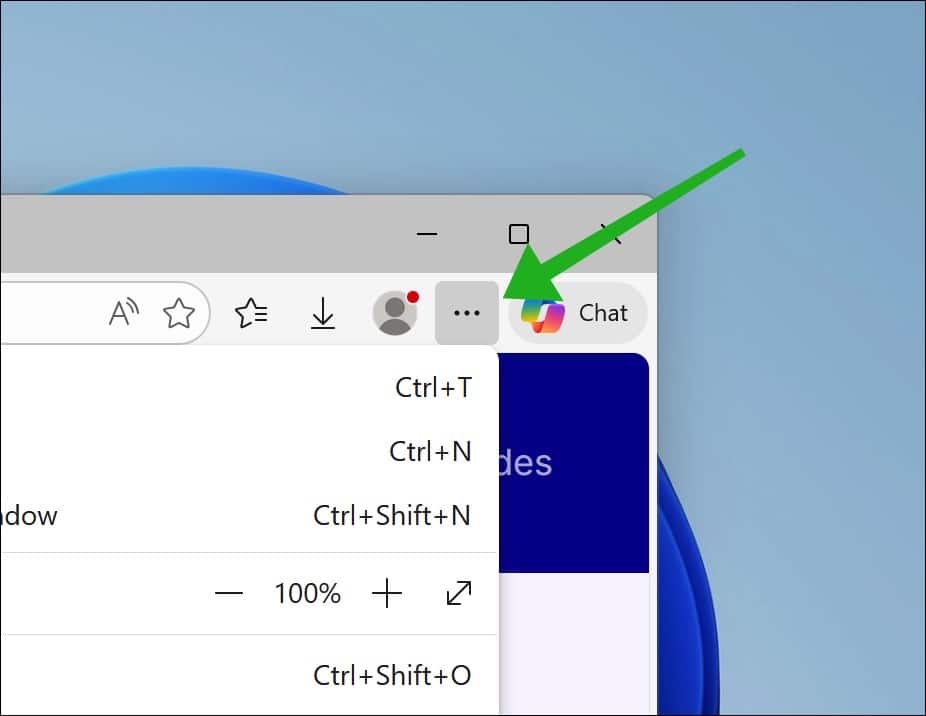
Then click on Settings.
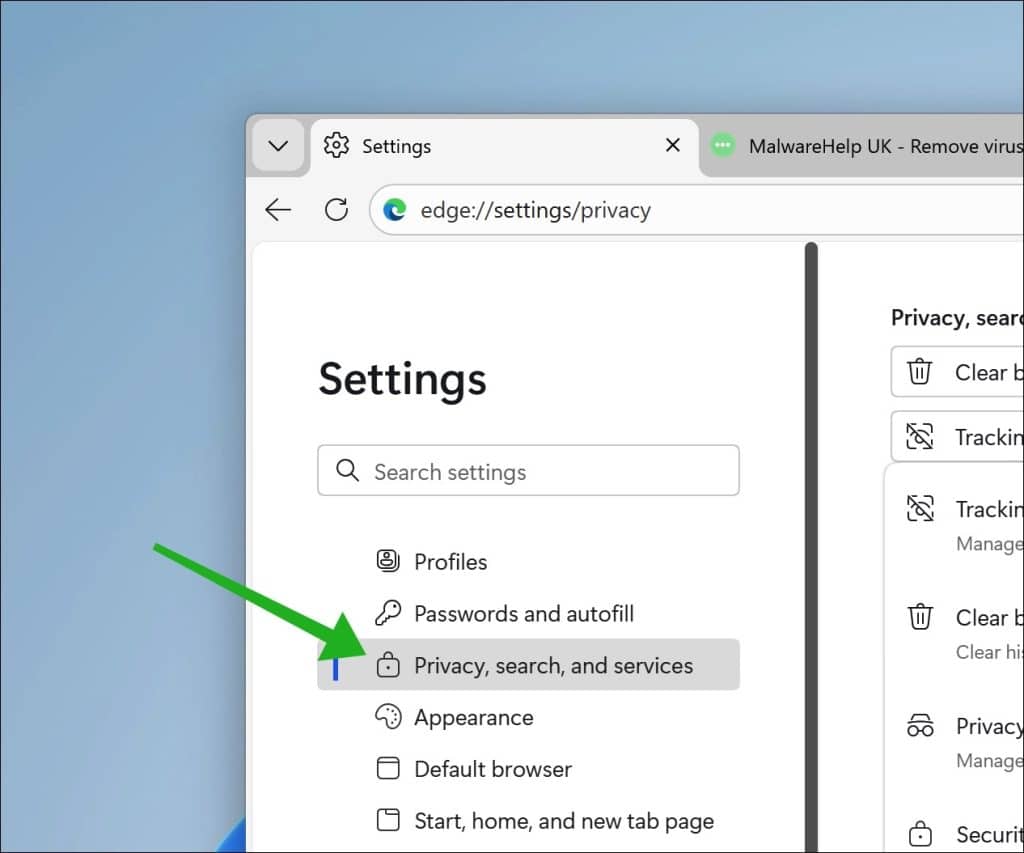
On the left side in the menu click on Privacy, search and services.
If you do not see this menu, enlarge the Microsoft Edge window.
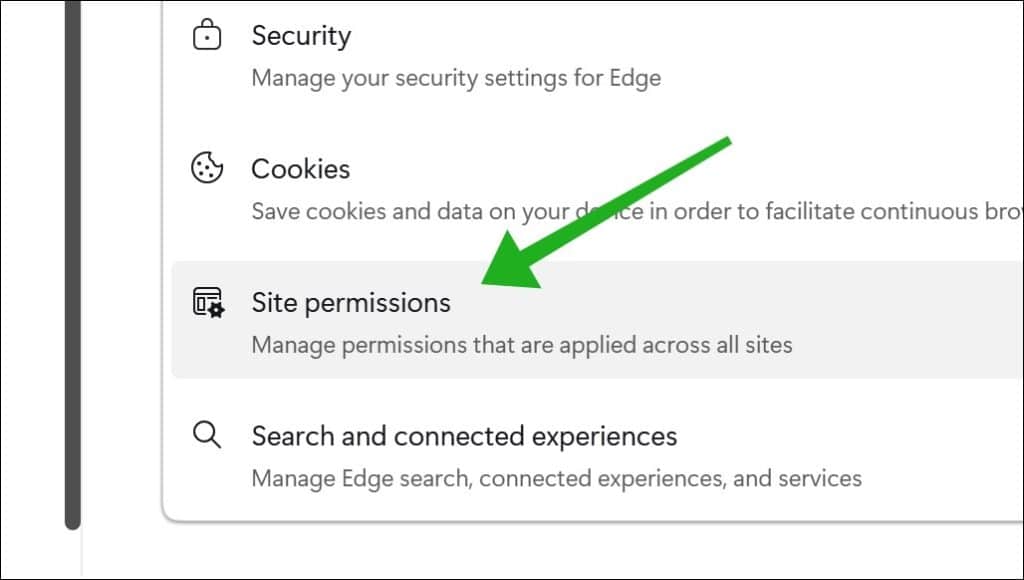
Click on Site permissions to open the website settings.
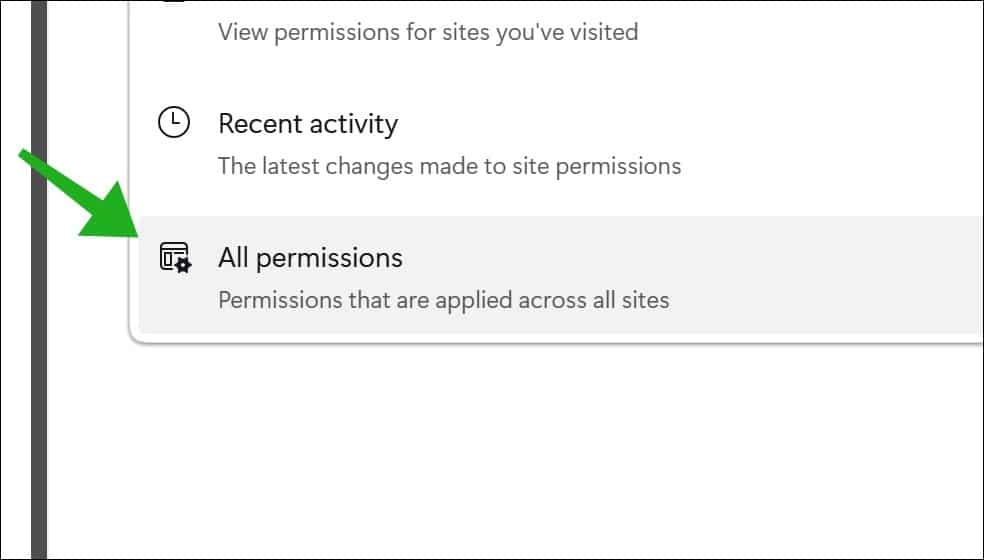
Now click again on All permissions.
Since these are unwanted notifications, click on Notifications.
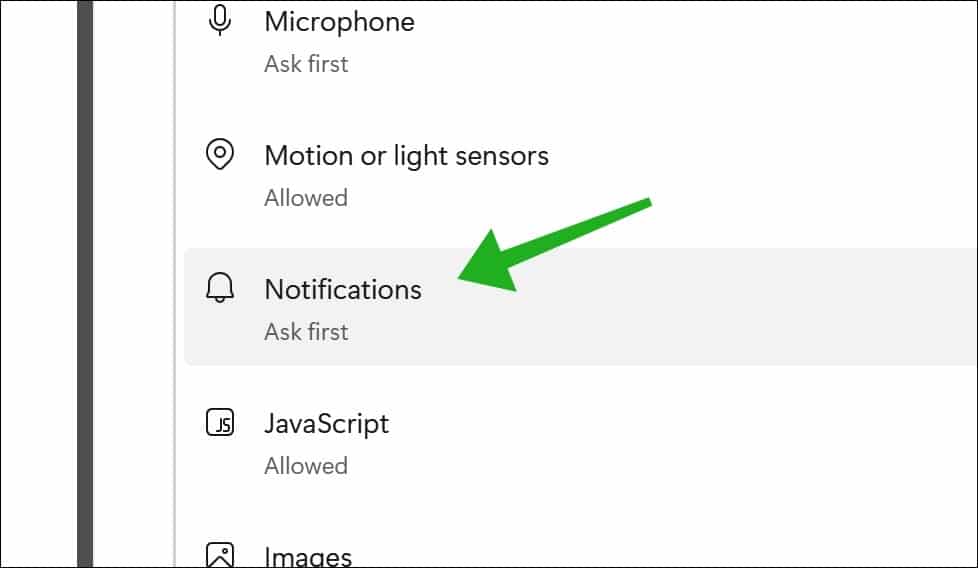
Here you see all websites that are allowed to send notifications.
In the settings for Customized behaviors click on the three horizontal dots to the right of the URL.
Confirm by clicking on Remove.
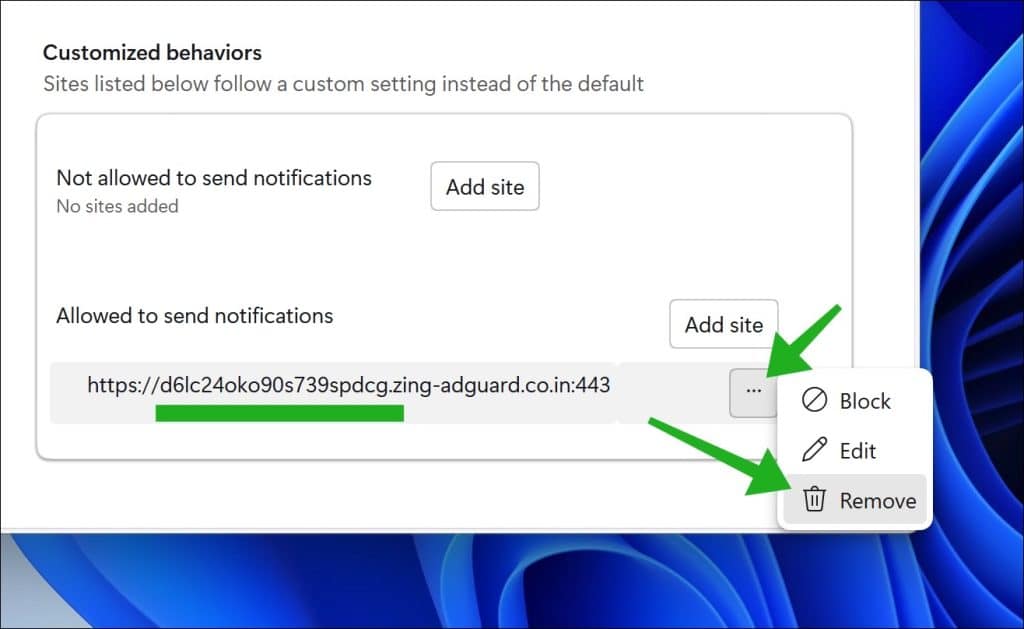
You have now disabled the unwanted pop-ups from Kyronbotshield.co.in in the Microsoft Edge browser.
Google Chrome
To remove the unwanted notifications from Kyronbotshield.co.in in Google Chrome, follow the steps below.
First open the Google Chrome browser.
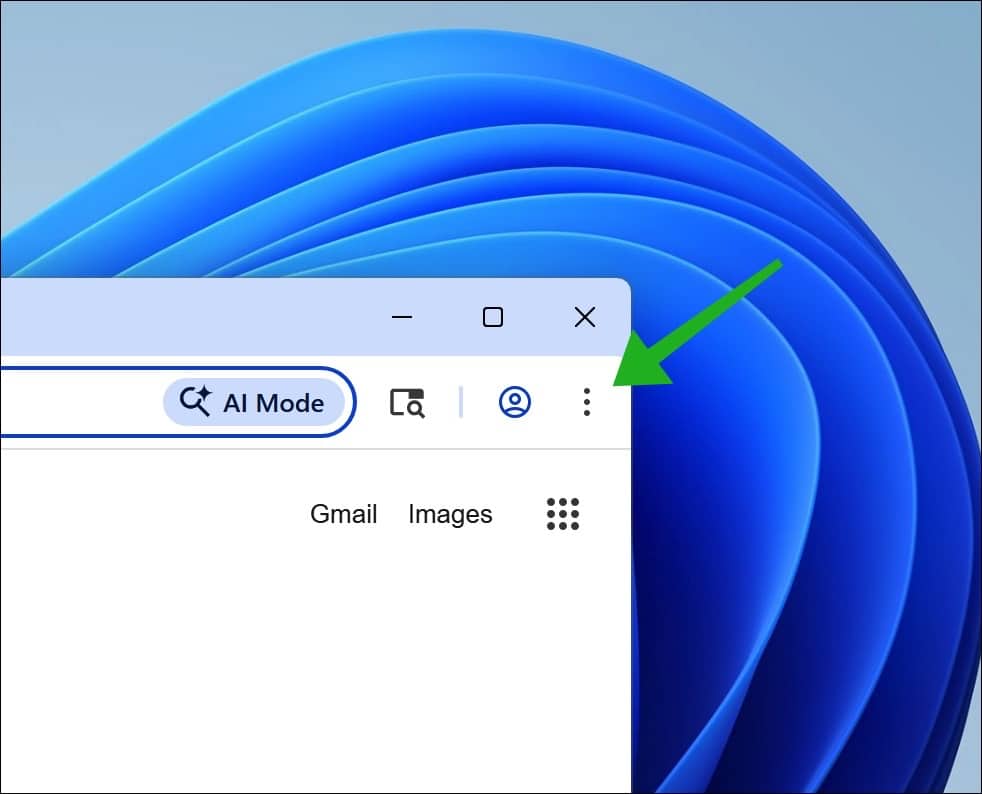
Then click on the menu icon at the top right.
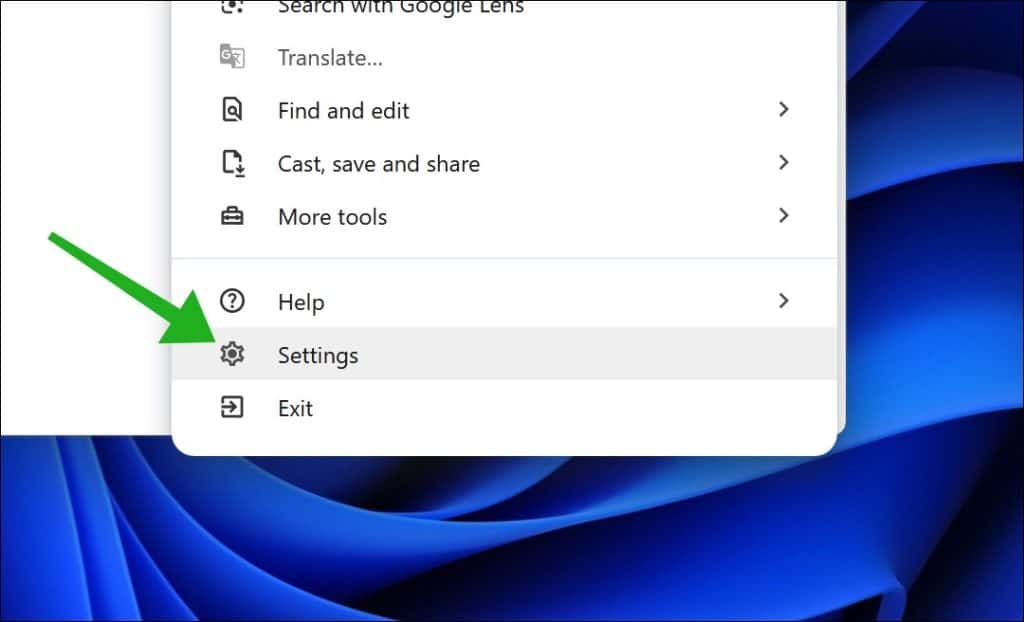
Click on Settings in the menu.
On the left side in the menu click on Privacy and security.
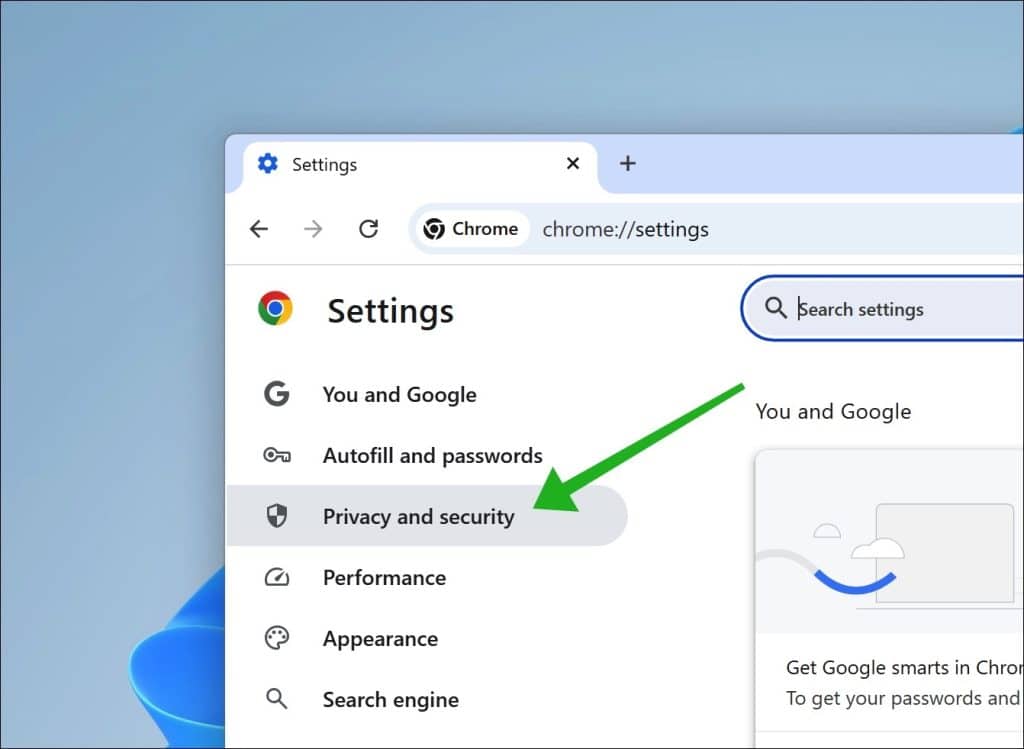
Then click on Site settings.
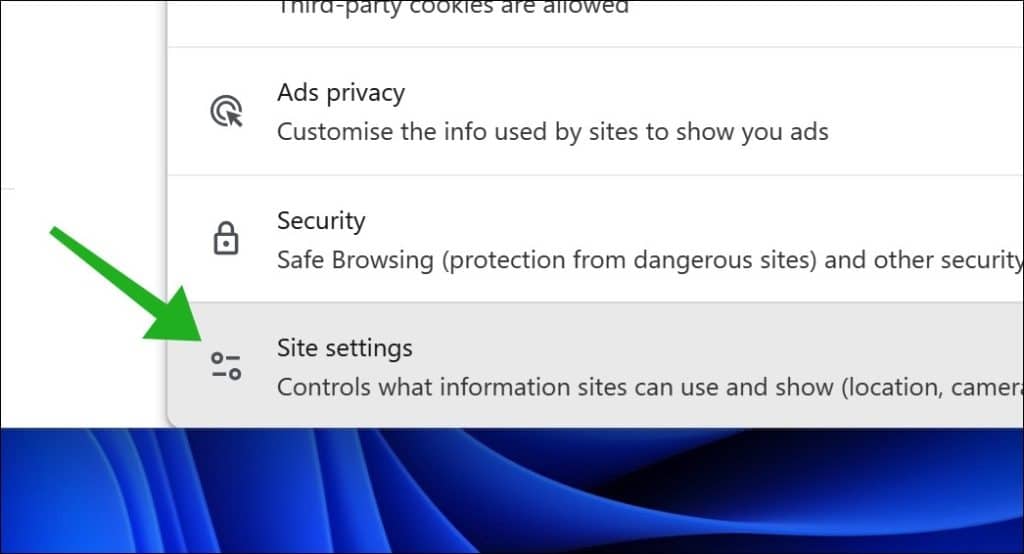
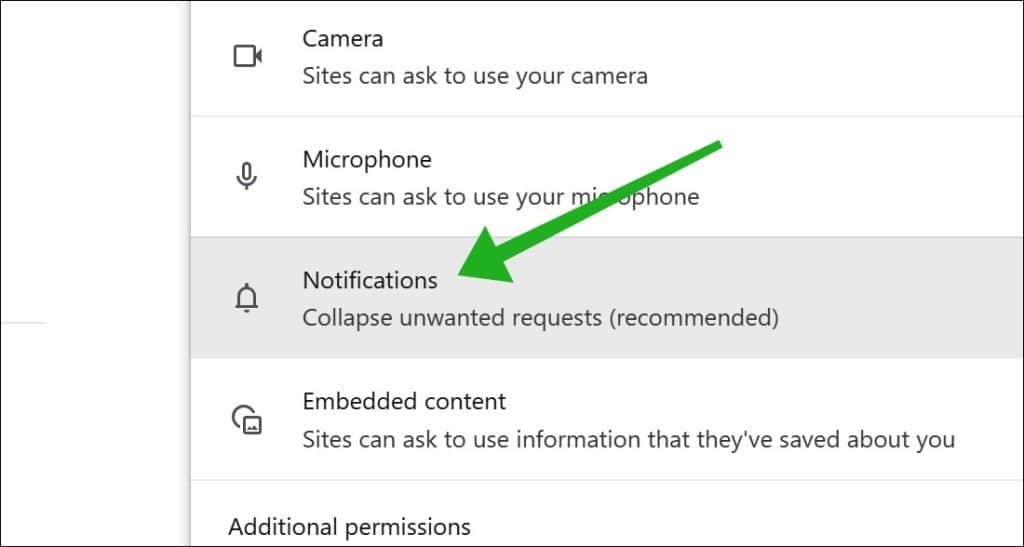
To remove the unwanted notifications, click on Notifications.
In the settings for Customized behaviors, click below at Allowed to send notifications, to the right of the URL on the three horizontal dots, and then on Remove.
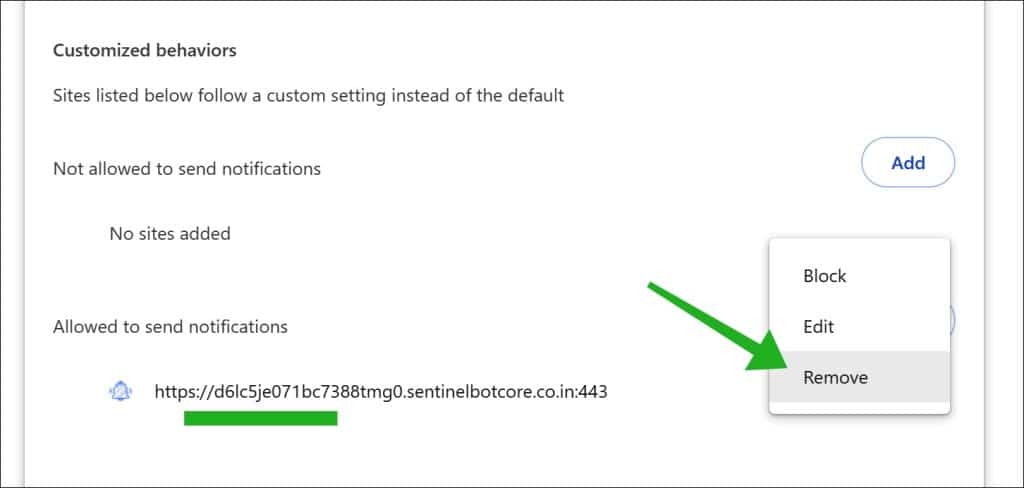
You have now removed the unwanted pop-ups and notifications from Kyronbotshield.co.in in the Google Chrome browser.
Run a Malwarebytes scan to remove malware and protect your device
Removing malicious notifications originating from a fraudulent or dangerous website is an important first step. To ensure that your device also remains free of other potential threats, you can perform a full scan with Malwarebytes. Follow the steps below to correctly install Malwarebytes, run a scan, and safely remove detected threats.
Download and install Malwarebytes
- Go to the official website of Malwarebytes to download the free version and the installer (click here).
- Select the option that best suits your needs (there is a free version and a Premium version with additional features).
- After downloading, open the installation file to start the installation. Follow the steps in the installation wizard to install Malwarebytes on your device.
Run the first Malwarebytes scan
- Once the installation is complete, open Malwarebytes.
- Before starting the scan, update Malwarebytes to the latest malware database.
- Click on Scan in the main menu. Select a full scan to thoroughly check your entire device.
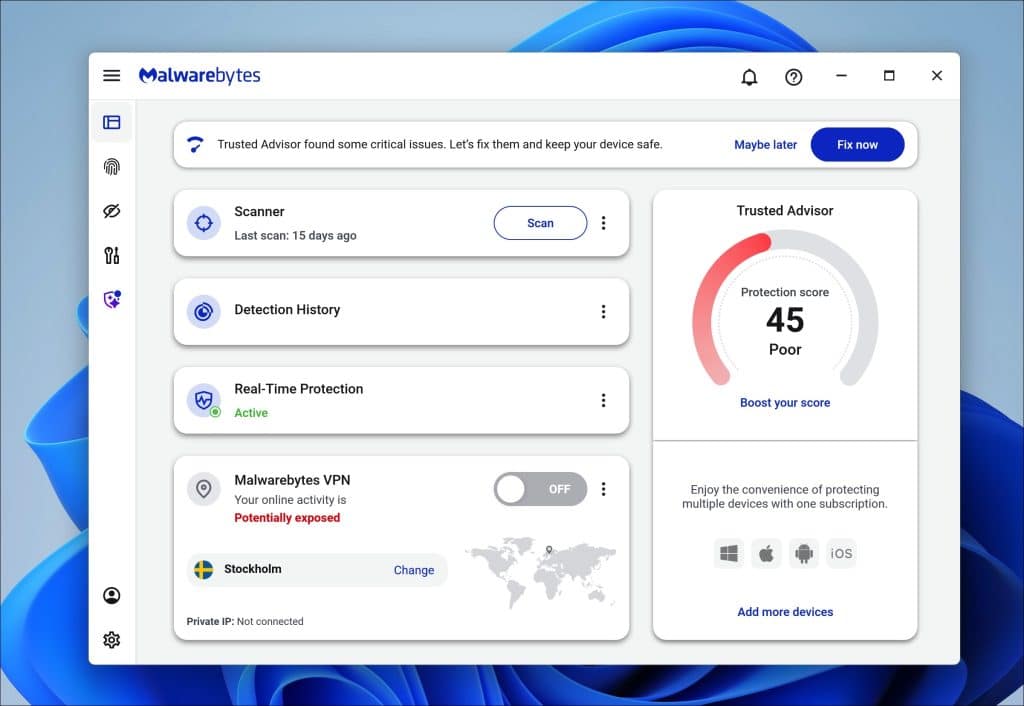
Review and remove detected threats
- After the scan, Malwarebytes will display a list of all detected threats.
- Review the results and choose Quarantine or Remove for each threat.
- After the removal is completed, it is often recommended to restart your device.
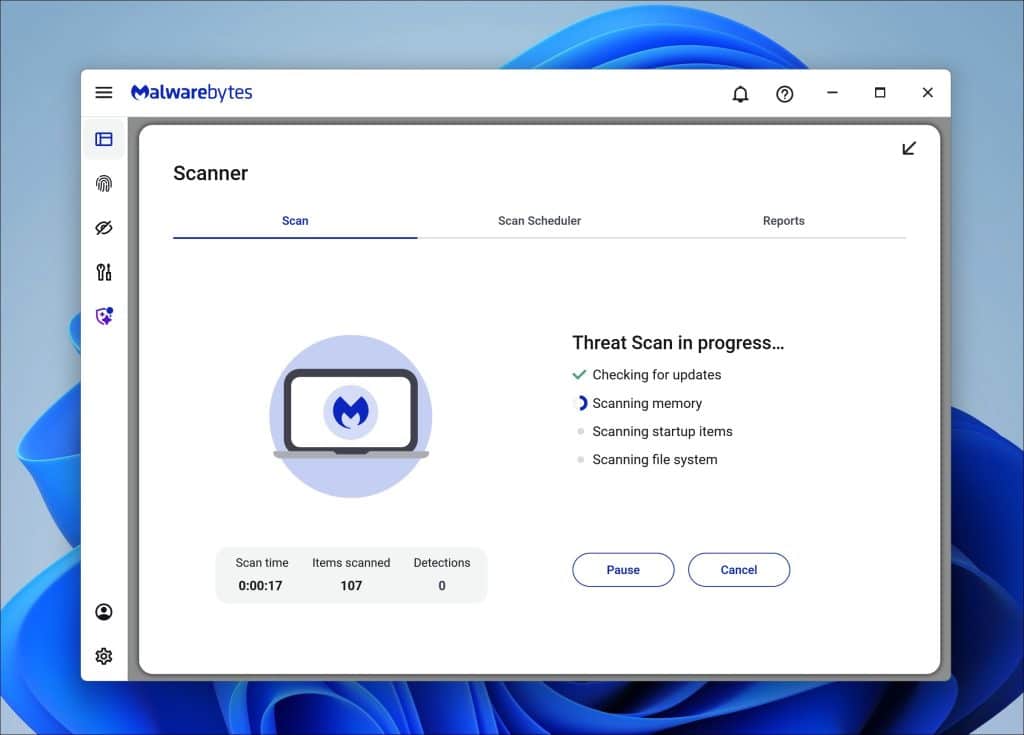
Additional protection with Malwarebytes
Malwarebytes offers a Premium version with additional features such as real-time protection and scheduled scans. Consider this version if you want to prevent unwanted notifications, malicious websites, or malware from appearing again. By using these comprehensive scanning and security options from Malwarebytes, you not only protect your device from dangerous websites but also ensure that any hidden malware and other potential threats are detected and removed.
I hope these steps help you remove malicious content and threats from your system. With these steps, you can successfully clean your system. Do you still have questions? Feel free to leave a comment! Thank you for reading.
I hope I was able to help you with this. If this guide helped you, please share it with others.
Thanks for reading!